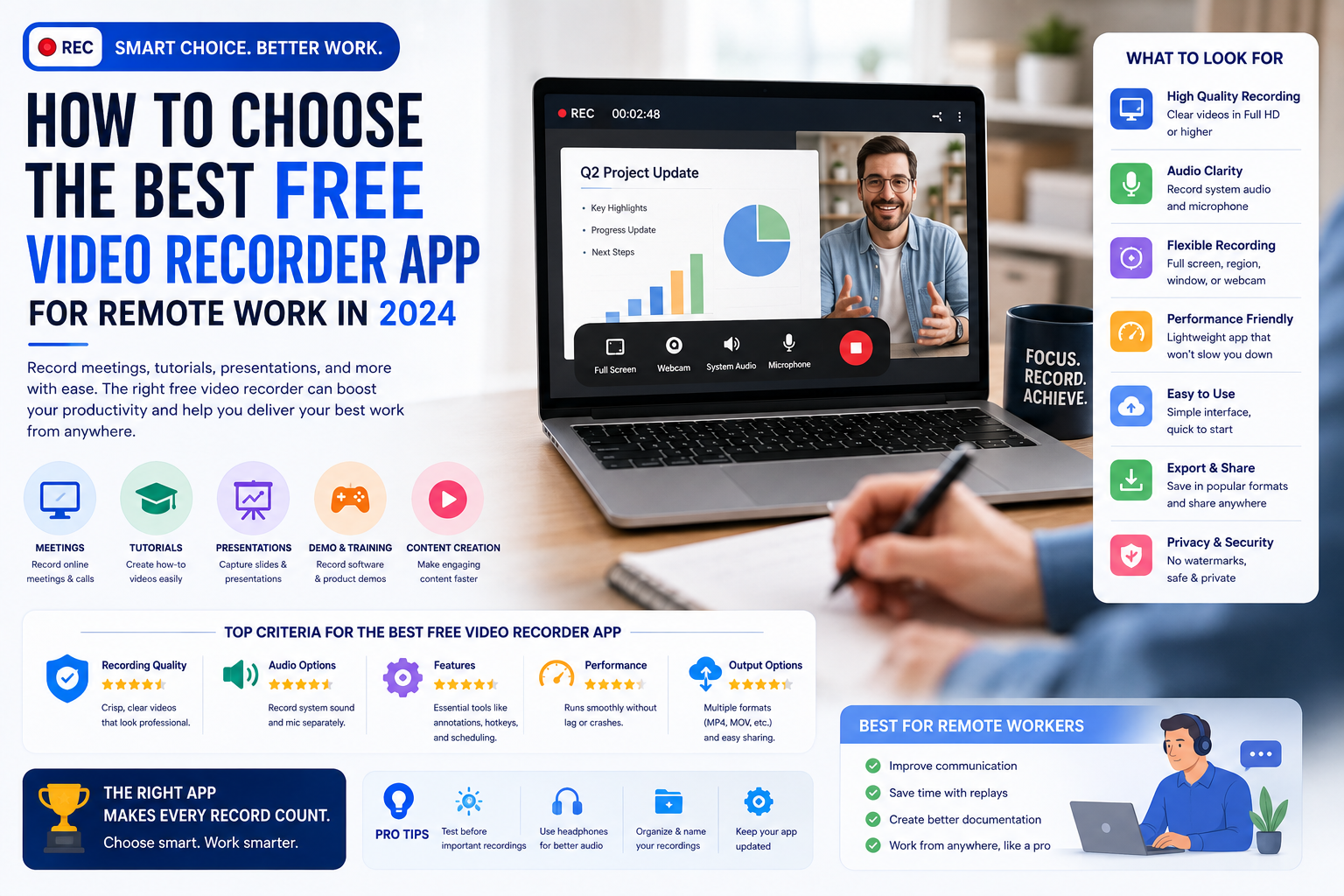
How to Choose the Best Free Video Recorder App for Remote Work in 2026
Remote work has made recorded video an everyday business tool. Employees now use screen recordings to explain technical problems, demonstrate software, share project updates, train colleagues, and answer questions without scheduling another meeting.
A short recording can often communicate an idea more clearly than a long email. However, the experience depends heavily on the recorder being used. Poor audio, low-resolution video, intrusive watermarks, and limited recording controls can make even a simple update look unprofessional.
There are many free recording apps available, but their features and restrictions vary considerably. Here is how to choose a free video recorder app that fits your remote-work needs.
Start With Your Main Recording Needs
Before comparing applications, decide what you will record most often.
Remote workers commonly use video recorders for:
- Software demonstrations
- Employee training
- Project updates
- Technical support
- Client presentations
- Product walkthroughs
- Video messages
- Meeting summaries
- Bug reports
- Onboarding instructions
A basic screen recorder may be enough for reporting a software problem. Training and presentation videos may require microphone capture, face-camera support, annotations, and higher-quality exports.
Choosing based on your actual workflow prevents you from installing a complicated app filled with features you will never use.
Check the Recording Modes
A useful recorder should provide more than one recording option. At minimum, look for screen-only and screen-with-microphone modes.
Additional modes can make the app more valuable:
Screen and Microphone
This mode records on-screen activity while adding your voice. It is ideal for tutorials, bug reports, project feedback, and demonstrations.
Screen and Face Camera
A small face-camera window adds a personal presence to training and presentation videos. It can help viewers connect with the speaker and understand the tone of the message.
Camera-Only Recording
Camera recording is useful for direct updates, introductions, and asynchronous video messages that do not require screen sharing.
Audio-Only Recording
Some updates do not need video. Audio-only recording can create smaller files and may be suitable for voice notes, interviews, or quick explanations.
You may not need every mode immediately, but choosing an app with flexible options gives you room to expand your workflow.
Prioritize Clear Audio
Clear audio is often more important than perfect video. A viewer may tolerate a slightly soft image, but unclear speech can make a recording unusable.
The recorder should let you choose between available audio sources, such as:
- Microphone audio
- Device or application audio, where supported
- Microphone and device audio
- No audio
Test the microphone before recording an important presentation. Listen for background noise, echo, distortion, and inconsistent volume.
If possible, use a headset or external microphone in a quiet room. Even an excellent recording app cannot completely repair poor audio captured in a noisy environment.
Choose the Right Video Quality
Most remote-work recordings do not require the highest possible resolution. A 1080p recording is usually sharp enough for software demonstrations, presentations, and training materials.
Resolution is only one factor. Also check whether the application allows you to control:
- Frame rate
- Video orientation
- Bitrate or quality level
- Recording area
- Output format
- File size
Recording at 60 frames per second can be useful for fast animation or movement, but 30 frames per second is sufficient for most workplace tutorials. Higher settings create larger files and may cause older devices to heat up or lose performance.
The best app allows you to balance clarity with manageable file size.
Look for Simple Recording Controls
Remote workers should be able to start, pause, resume, and stop a recording without difficulty.
Floating controls or a notification panel can be useful when recording another application. They let you manage the session without returning to the recorder and capturing unnecessary footage.
However, floating controls may require permission to display over other apps. The recorder should explain why this access is needed and allow you to disable it if you prefer another control method.
A countdown timer is another useful feature. It gives you a few seconds to open the correct screen before recording begins.
Understand the Free Plan’s Limits
“Free” does not always mean unlimited. Some apps offer their main features without payment, while others place strict limits on free recordings.
Check for restrictions such as:
- Maximum recording duration
- Limited video resolution
- Watermarks
- Export limits
- Restricted audio options
- Advertising frequency
- Limited cloud storage
- Disabled editing features
- Subscription-only sharing tools
A free plan can still be useful if its restrictions match your needs. For example, a five-minute recording limit may be acceptable for bug reports but unsuitable for employee training.
Pricing and limitations should be clearly explained before you create an important recording.
Review Privacy and Security
Work recordings may contain customer information, internal documents, private messages, or confidential project details. Privacy should therefore be a major part of your decision.
Before using a recorder, check:
- Whether recordings remain on the device
- Whether files are automatically uploaded
- Where cloud recordings are stored
- Whether uploads use secure connections
- How long cloud files are retained
- Whether recordings are used for analytics or AI training
- How you can delete your information
- Which permissions the app requests
A screen recorder may reasonably request access to screen capture, microphone, camera, notifications, or local media when those features are used. It should not request unrelated access without a clear explanation.
For sensitive work, a local-first recorder may be preferable because the file stays on your device until you choose to share it.
Consider Editing and Sharing Features
You may not need a complete editing studio, but a few built-in tools can save time.
Helpful features include:
- Trimming the beginning and end
- Cutting mistakes
- Cropping the recording
- Muting selected sections
- Adding text or basic annotations
- Compressing large files
- Renaming recordings
- Sharing through workplace apps
Without basic trimming, viewers may have to watch setup time, mistakes, or several seconds of unnecessary footage. Simple editing can make an informal recording feel much more professional.
Also confirm that the exported format works with your team’s tools. MP4 is widely supported and is usually a practical choice.
Test Performance on Your Device
An app may look impressive in its store listing but perform poorly on a particular phone or computer.
Before using it for an important task, create a two-minute test recording. During playback, check for:
- Dropped frames
- Delayed audio
- Blurry text
- Missing device sound
- Excessive battery use
- Unexpected interruptions
- Overheating
- Incorrect orientation
- Notifications containing private information
Testing also helps you choose the correct quality settings for your device.
A Practical Selection Checklist
Before choosing a free recorder, ask these questions:
- Can it record the screen and microphone together?
- Does it support face-camera recording if I need it?
- Is the video clear enough to read small text?
- Can I pause and resume easily?
- Does the free version add a watermark?
- Is there a recording-time limit?
- Can I trim mistakes before sharing?
- Are files stored locally or uploaded automatically?
- Are its permission requests relevant and clearly explained?
- Does it work reliably on my device?
An app that performs well in these areas should meet most everyday remote-work requirements.
Frequently Asked Questions
Is a free video recorder suitable for professional work?
Yes. A free recorder can be suitable for tutorials, bug reports, presentations, and team updates if it provides clear audio, readable video, reliable controls, and acceptable export limits.
Is 1080p enough for remote-work recordings?
For most workplace content, 1080p provides a good balance between clarity and file size. It is usually sufficient for recording presentations and software interfaces.
Should work recordings be stored in the cloud?
Cloud storage can make sharing easier, but it may not be appropriate for confidential information. Review your employer’s policies and the recorder’s privacy terms before uploading sensitive material.
Do I need face-camera recording?
Not always. A face camera can make presentations and training videos feel more personal, but screen-and-microphone recording is enough for many demonstrations and support tasks.
Can a recorder capture online meetings?
Technical capability varies by platform, app, and operating system. You must also obtain any consent required by workplace policy and applicable law before recording other people.
Final Thoughts
The best free video recorder app for remote work is not necessarily the one with the longest feature list. It is the one that records clearly, respects privacy, works reliably, and fits your daily communication needs.
Start by identifying what you need to record. Then compare recording modes, audio quality, free-plan limits, privacy practices, controls, and export options. Most importantly, test the app before relying on it for an important meeting or presentation.
A dependable recorder can reduce unnecessary meetings, improve documentation, and make remote communication easier for everyone involved.