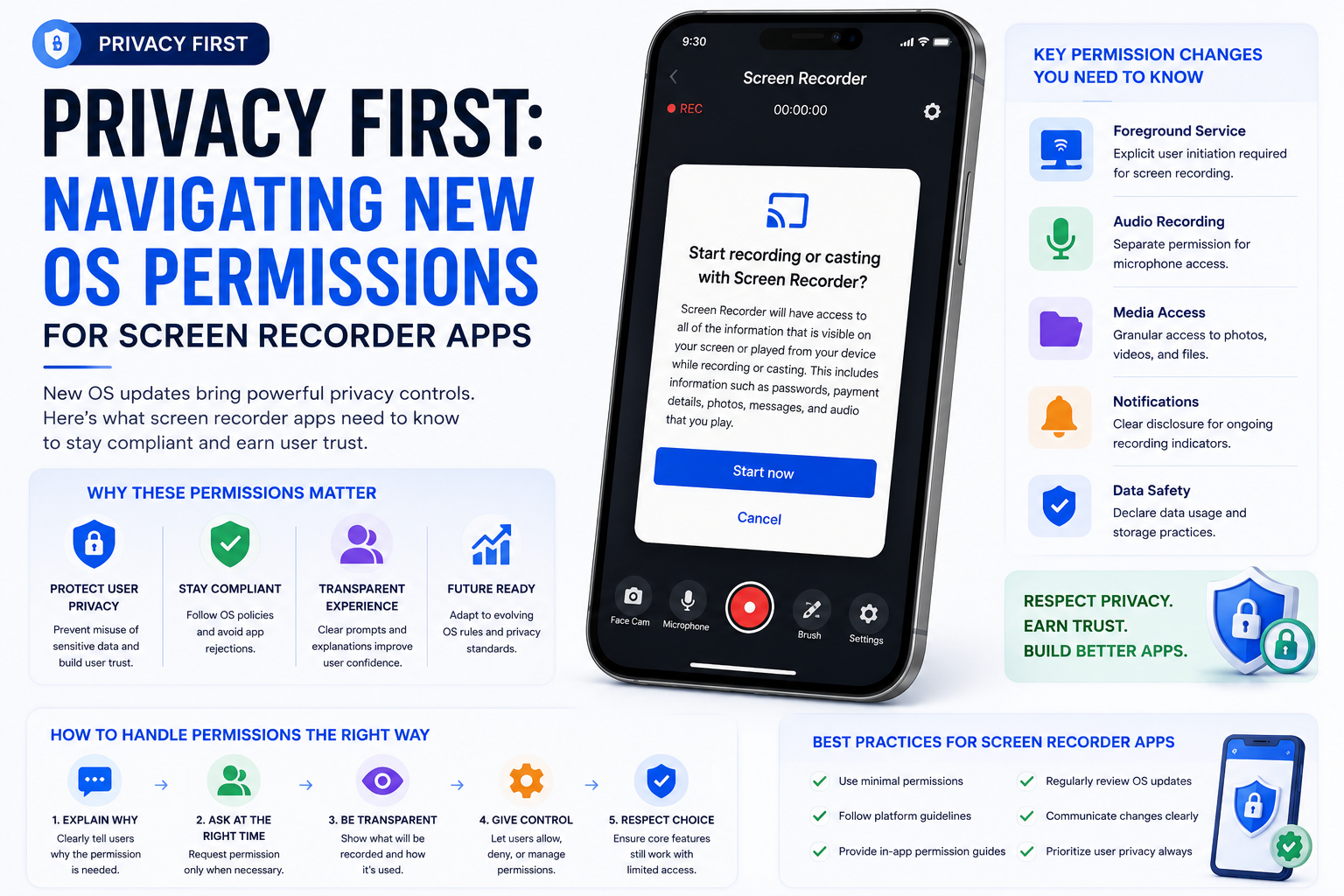
Privacy First: Navigating New OS Permissions for Screen Recorder Apps
A screen recorder can capture much more than a planned tutorial or gaming session. If users are not careful, the resulting video may also contain personal messages, email addresses, payment details, private photographs, notification previews, or sensitive work information.
That is why modern operating systems treat screen recording as a privacy-sensitive activity. Android and Apple platforms place system-controlled steps between an app and the content displayed on a device. Camera, microphone, media-library, and notification access may require separate authorization as well.
These safeguards are good for users, but they can make the permission process feel confusing. Why does a screen recorder need microphone access? Can it record the display without permission? Does it need access to every photograph and video stored on the device?
Understanding screen recorder app permissions can help users make safer choices and help developers create more transparent recording experiences.
Why Screen Recording Requires Special Protection
Most app permissions protect a particular type of information. Camera permission controls access to the camera, while microphone permission controls audio capture.
Screen recording is different because a display can contain information from many sources at once. During a recording session, a user might switch between a browser, messaging app, photo gallery, banking service, or workplace tool.
A screen recording can potentially expose:
- Personal and business messages
- Email addresses and contact details
- Account names and profile photographs
- One-time passwords and verification codes
- Financial balances or transaction information
- Private browser tabs
- Patient or client information
- Location details
- Notification content
- Photographs and videos
- Workplace documents
For this reason, a responsible recorder should never begin capturing the screen silently. The user should clearly understand when recording starts, what will be captured, and how to stop it.
Modern platform rules reinforce this principle through consent dialogs, recording indicators, foreground notifications, and restricted access to protected resources.
Screen Capture Is Not the Same as a Normal Permission
Users are familiar with prompts asking whether an app can access the camera or microphone. Screen-capture authorization can work differently.
On Android, screen capture commonly uses the MediaProjection system. The operating system—not the recorder alone—shows a confirmation interface before granting access. According to the official Android MediaProjection documentation, apps targeting Android 14 or later must obtain user consent for every new media-projection session.
This means a legitimate app should not be able to remember one approval and silently start unrelated screen recordings later.
Newer versions of Android can also let users share or record a single app instead of exposing the entire display. Android describes this as app screen sharing, a feature designed to give users more control over what becomes visible during capture.
On Apple platforms, developers generally work with system frameworks such as ReplayKit for supported recording and broadcasting experiences. Apple’s ReplayKit documentation explains that the framework can record video from the screen together with app or microphone audio, depending on the implementation and available capabilities.
Although the exact interface differs across platforms and OS versions, the central idea is the same: screen recording should be an intentional, visible action initiated by the user.
The Main Permissions a Screen Recorder May Request
Not every recording app needs every permission. The correct set depends on its features.
A screen-only recorder should generally require less access than an app offering face-camera overlays, voice narration, floating controls, cloud backup, and a built-in media library.
Screen-Capture Authorization
Screen-capture authorization is the core requirement. It allows the app to receive visual content from the display after the user approves a recording session.
On Android, users may see a system dialog asking whether they want to share the whole screen or one application. The exact wording and available choices depend on the Android version and device manufacturer.
This authorization should appear when the user begins a recording—not unexpectedly during onboarding.
A privacy-friendly flow usually looks like this:
- The user taps Start Recording.
- The app explains what the selected recording mode will capture.
- Android or iOS presents the relevant system controls.
- The user actively confirms the session.
- A visible indicator remains available while recording continues.
- The user can stop the recording at any time.
The app should handle rejection gracefully. If the user cancels, it should return to the previous screen and explain that no recording was started.
Microphone Permission
Microphone access is used for voice narration, commentary, podcasts, reactions, meetings, or other external sounds.
It should be optional when a user selects a screen-only mode. Requiring microphone permission for a recording that does not use the microphone creates unnecessary concern and may conflict with the principle of requesting only essential access.
On iOS, an app that accesses the microphone must include a clear purpose description explaining why access is needed. Apple documents this requirement through its microphone usage-description guidance.
A vague explanation such as “Microphone required” is not very helpful. A clearer message would be:
“Allow microphone access to add your voice to screen recordings.”
The explanation tells the user what the permission enables without implying that it is required for unrelated features.
Camera Permission
Camera permission may be necessary for:
- Face-camera overlays
- Talking-head videos
- Front-and-rear camera recording
- Video reactions
- Tutorial introductions
- Picture-in-picture creator modes
As with microphone access, the camera request should appear when the user activates a camera-related feature.
A screen-only session should not automatically require camera access. Permission minimization makes the app easier to understand and limits the impact of any future security problem.
Audio Capture
Device audio and microphone audio are not necessarily the same thing.
Microphone audio records sounds picked up by the device’s microphone. Internal or app audio attempts to capture sound generated by the device or a participating application.
On Android, the ability to capture playback audio depends on the operating-system version, the content source, and whether the other app permits its audio to be captured. Some protected or sensitive content may not be available to the recorder.
Users should therefore not assume that selecting “device audio” guarantees that every sound from every app will appear in the video.
A responsible recorder should describe its audio options accurately:
- No audio
- Microphone only
- Device audio, where supported
- Device and microphone audio, where supported
If a particular source cannot be captured, the app should communicate the limitation instead of failing silently.
Photo and Video Library Access
A recording app may need to save finished videos or display existing recordings. However, it does not always need unrestricted access to the user’s entire media library.
Android 14 introduced selected photo and video access, allowing users to grant an app access to particular media items instead of the entire collection. Developers are instructed not to assume that they have permanent or complete access to the library. More details are available in Android’s selected media access guidance.
Modern apps can also use system pickers for user-selected files. This is often more privacy-friendly than requesting broad media access.
For users, the important question is simple: does the feature genuinely need to browse all existing media, or does it only need to save and share a newly created recording?
Notifications
On Android, a screen recorder commonly uses a foreground service while a recording is active. A foreground-service notification makes the ongoing task visible and gives users a way to return to or stop the recorder.
Android explains that foreground services use a status-bar notification to make users aware of noticeable ongoing activity. Screen recording is precisely the kind of operation that should remain visible.
On recent Android versions, apps may separately request permission to send notifications. Even when notification permission is denied, the system may still provide limited visibility for an active foreground service, but the exact presentation can vary.
Recording apps should not misuse notification access for aggressive promotions. Permission granted for recording controls is not an invitation to send excessive marketing alerts.
Display-Over-Other-Apps Access
Some Android screen recorders offer a floating bubble containing pause, resume, screenshot, or stop controls. This feature can require permission to display over other apps.
Overlay access is powerful because the app can place elements above other interfaces. It should be treated as optional and requested only when the user enables floating controls.
The app should explain:
- What the floating control does
- When it will appear
- How to hide it
- Whether it appears in the finished recording
- How to disable the permission later
Users who do not want overlays should still be able to control recording through an in-app interface or system notification where practical.
What Changed on Recent Android Versions?
Android has gradually tightened the technical rules surrounding screen recording and long-running background activity.
For apps targeting Android 14 or higher, developers must declare the appropriate media-projection foreground-service type and related foreground-service permission. More importantly for users, every media-projection capture session requires fresh consent.
A screen recorder cannot reuse the same MediaProjection token indefinitely to create multiple recording sessions. This reduces the possibility of an app turning a previous approval into silent future access.
Android 15 also supports a more focused app-sharing experience, allowing users to capture one app instead of exposing the full device screen in supported situations. This is valuable during tutorials or presentations because personal notifications and unrelated apps are less likely to enter the recording.
These platform controls do not eliminate every privacy risk. A user can still reveal sensitive information inside the selected app. However, limiting the capture area creates a safer default.
How Apple Approaches Recording Transparency
Apple requires apps to obtain explicit user consent and provide a clear visual or audible indication when recording user activity. Its App Review Guidelines apply this expectation to the camera, microphone, screen, and other user inputs.
On supported Apple platforms, system frameworks manage important parts of the recording experience. Camera and microphone access also have their own privacy controls and purpose descriptions.
A trustworthy iPhone or iPad recording app should not try to disguise when recording is active. Users should have clear control over starting and ending the session.
If a feature saves, uploads, analyzes, or shares the recording, those actions should also be explained separately. Permission to capture a video does not automatically mean the user has agreed to cloud storage, analytics processing, or public sharing.
Permission Does Not Equal Unlimited Consent
One of the most important privacy principles is purpose limitation.
If a user grants microphone access to narrate a tutorial, that does not mean the app should collect audio for unrelated analytics. If the user grants access to save a recording, that does not mean the video should be automatically uploaded to a remote server.
Good apps distinguish between:
- Permission to access a device capability
- Consent to perform a particular task
- Consent to store information
- Consent to upload or share information
- Consent to use information for analytics or advertising
These actions may require different explanations and controls.
A privacy policy should describe what the app collects, why it is collected, whether it leaves the device, how long it is retained, and how the user can request deletion where applicable.
Red Flags to Watch for in a Screen Recorder App
Permission requests alone do not prove that an app is unsafe. A feature-rich recorder may legitimately need the camera, microphone, storage, notifications, and overlay access.
The timing and explanation of those requests are more revealing.
Users should be cautious when an app:
- Requests every permission during the first launch
- Refuses to offer screen-only recording without camera access
- Provides vague or misleading permission explanations
- Starts recording without an obvious indicator
- Makes the stop control difficult to find
- Requests contacts, call logs, or location without a clear feature-based reason
- Uploads recordings by default without clear notice
- Hides important privacy information
- Uses recording permissions mainly to deliver intrusive advertising
- Continues requesting a denied optional permission repeatedly
- Claims it can secretly record protected content
- Asks users to disable important device security features
Before installing an unfamiliar recorder, users should review its store listing, developer identity, privacy disclosures, recent reviews, and update history.
Privacy Best Practices for Users
Even a well-designed app cannot prevent every accidental disclosure. Users should prepare their device before starting a session.
Enable Do Not Disturb
Messages and verification codes can appear without warning. Do Not Disturb mode helps prevent notification banners from entering the recording.
Close Sensitive Applications
Close banking, email, password-management, health, and workplace apps that are not needed for the session.
Use Single-App Recording When Available
If the operating system lets you record one app instead of the whole display, use that option for tutorials and demonstrations.
Review Audio Settings
Check whether the recorder is using the microphone, device audio, both, or neither. Record a short test before an important session.
Inspect the Final Video
Watch the entire recording before uploading it. Pay attention to notifications, status-bar information, browser tabs, account names, background conversations, and personal photographs.
Remove Permissions You No Longer Need
Android and iOS settings allow users to review or revoke camera, microphone, media, and notification permissions. Optional permissions can be enabled again when the related feature is needed.
Delete Unnecessary Recordings
Old recordings can contain forgotten personal information. Remove files that are no longer useful and check whether copies remain in cloud backups, editing apps, or recently deleted folders.
Best Practices for Screen Recorder Developers
Developers should view the permission flow as part of the product experience—not merely an obstacle before a feature can work.
A privacy-first implementation should:
- Request permission only when the related feature is selected
- Explain the benefit before displaying the system prompt
- Avoid requesting optional access during onboarding
- Offer useful functionality when optional permission is denied
- Clearly show when recording is active
- Provide accessible pause and stop controls
- Use the narrowest available media access
- Prefer system file and media pickers where appropriate
- Store recordings locally by default when possible
- Ask separately before uploading a recording
- Protect transmitted recordings with secure connections
- Provide a clear deletion process
- Keep privacy disclosures consistent with actual app behavior
- Test permission flows across supported OS versions
- Handle revoked and limited permissions without crashing
Developers should also remember that manifest declarations and runtime prompts serve different purposes. A permission listed in the application package does not replace the need for user-facing consent where the operating system requires it.
Frequently Asked Questions
Can a screen recorder record without permission?
Mainstream mobile operating systems place system controls around screen capture. On Android, MediaProjection requires user authorization for a capture session. Other resources, including the camera and microphone, have separate permission controls.
Why does a screen recorder need microphone permission?
Microphone permission allows the app to include narration, commentary, or environmental sound. It should not be required for a screen-only recording with no microphone audio.
Does screen-recording permission include internal audio?
Not automatically. Screen capture and audio capture involve different capabilities. Internal audio availability depends on the operating system, application, content type, and recording configuration.
Why does a recorder ask to display over other apps?
This access may be used for floating pause, resume, screenshot, or stop controls. It is a powerful permission and should remain optional when another control method is available.
Does a screen recorder need access to all photos and videos?
Not necessarily. It may only need to save a new recording or let the user select a file through a system picker. Modern operating systems provide more limited media-access options that developers should use when suitable.
Can protected streaming content be screen-recorded?
Some applications and media services use platform protections that block or limit capture. A recording may show a blank screen or omit protected content. Users should also respect copyright, contracts, and applicable laws.
Is a screen recorder safe if it is available in an official app store?
Store distribution provides some level of review, but it is not a complete guarantee. Users should still examine the developer, privacy disclosures, requested permissions, reviews, and app behavior.
Should I keep screen recorder permissions enabled?
You can keep permissions that support features you use regularly, but there is no harm in revoking optional camera, microphone, media, or overlay access when it is no longer needed.
Final Thoughts
Screen recording is a powerful creative and productivity feature, but it involves access to some of the most personal content on a device. Modern permission systems are designed to make that access deliberate, limited, and visible.
For users, the safest approach is to understand each request, select the narrowest available capture option, hide private notifications, and review every video before sharing it.
For developers, privacy should be built into the recording flow from the beginning. Contextual permission requests, honest explanations, visible recording indicators, limited media access, and local-first storage can make an app feel safer without making it harder to use.
The best screen recorder is not simply the one with the longest feature list. It is the one that helps people create confidently while keeping them in control of what gets recorded, stored, and shared.